Assign Seats To Whoever Needs Them
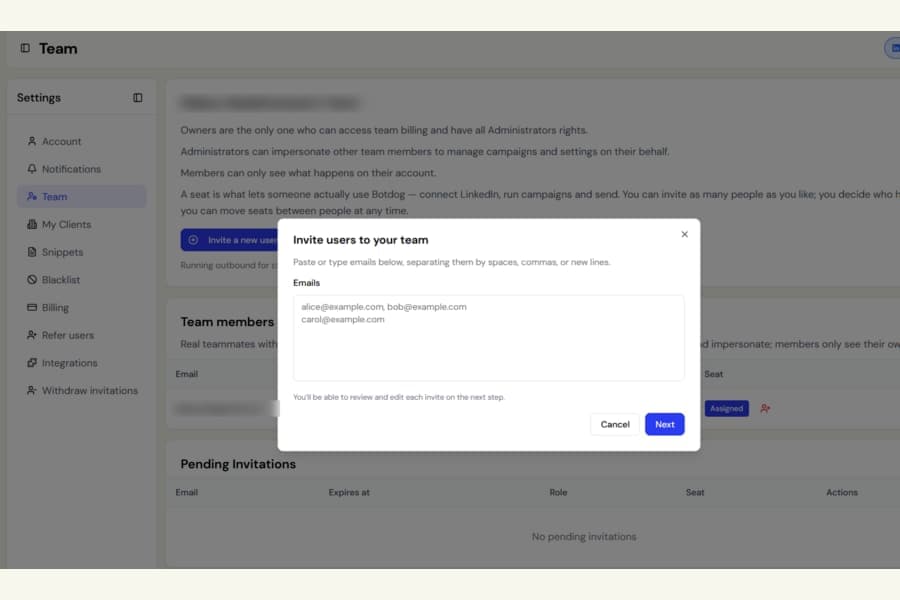
Seats are no longer tied to the people you invite.
You can now decide who on your team should have a seat, and move seats between members whenever you need to.
Invite people without using a seat
Inviting someone to your team no longer automatically uses one of your seats.
You can add as many team members as you need, then decide who should have access to sending and campaign features.
Assign or remove seats anytime
Go to Settings > Team to manage seats.
Each team member now has a Seat option where you can assign or remove a seat.
You can even remove the seat from your own account. For example, if the workspace owner does not run outreach, that seat can be given to another team member who does.
Keep someone on the team without using a seat
Removing a seat does not remove the person or delete their work.
Their campaigns, leads, contacts, messages, and history all stay in place.
You can assign the seat again later and they can continue from where they left off.
What happens when a seat is removed
When you take a seat back:
- Their LinkedIn account is disconnected immediately
- Running campaigns are paused
- Scheduled messages are cancelled
- They can still sign in and view their campaigns, contacts, and inbox
- They cannot send messages, import contacts, or launch campaigns
Nothing is deleted.
When you assign them a seat again, they can reconnect LinkedIn and continue using Botdog normally.
Your existing team is unchanged
Everyone who already had access before this update was automatically given a seat.
Nothing changes for your current team unless you choose to move or remove a seat.
Existing pending invitations
If you had a team invitation still waiting to be accepted when this update was released, that person will join without a seat.
You will see them under Settings > Team with a No seat badge and an option to assign one.
For new invitations, the invite form still assigns a seat by default, and you can change that later if needed.

